
Background Removal
How to remove backgrounds from clothing photos for ecommerce and social media.
3 min read · RemoveBGAI Team

Clothing and fashion is one of the most demanding categories for background removal. Fabric edges, loose threads, translucent lace, pattern detail near the silhouette, and accessories like jewelry all create challenges that blunt tools handle poorly. This guide explains how to get clean, marketplace-ready clothing cutouts, what to look for when reviewing results, and how to prepare the images for Shopify, Etsy, Amazon Fashion, and social platforms.
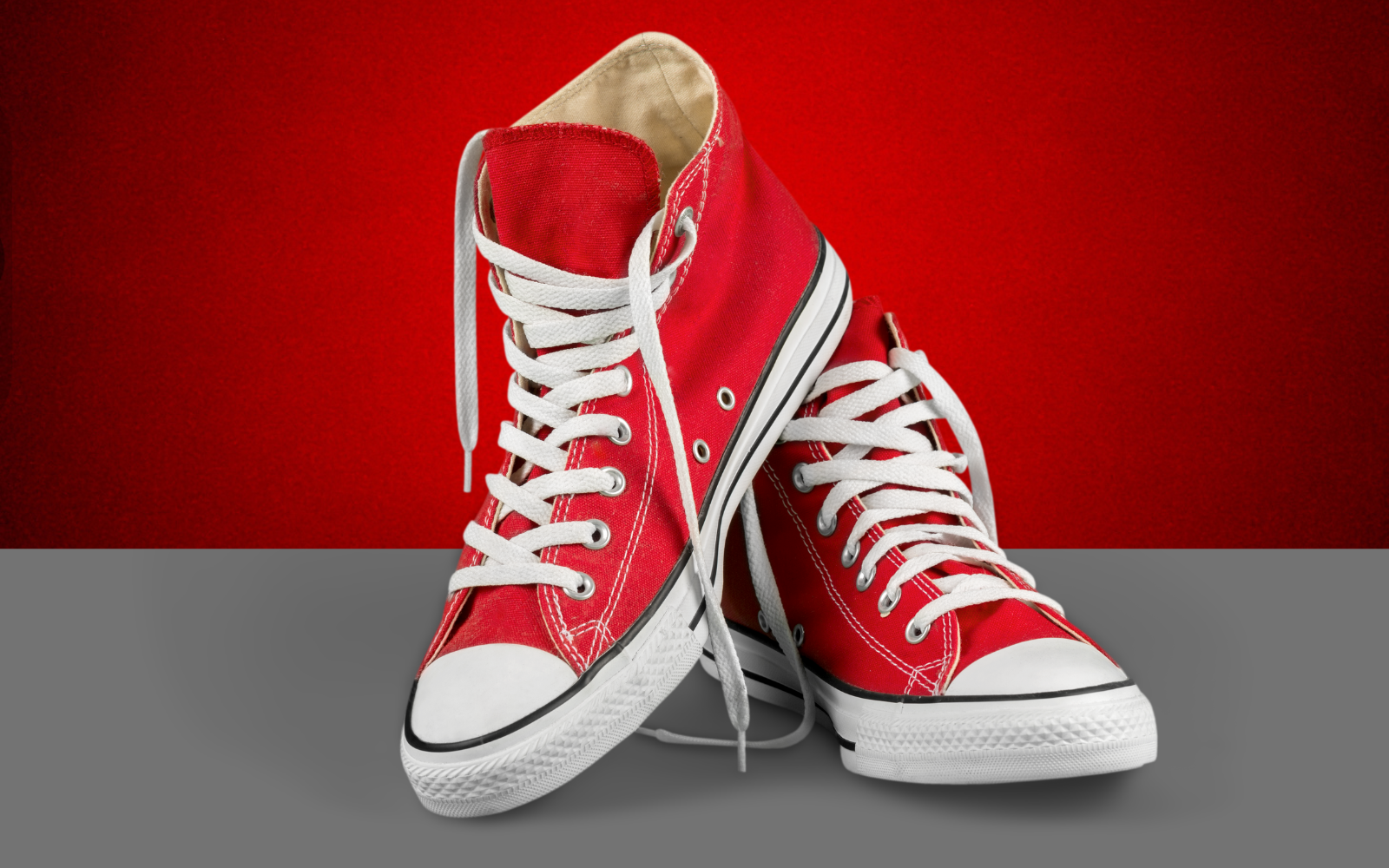
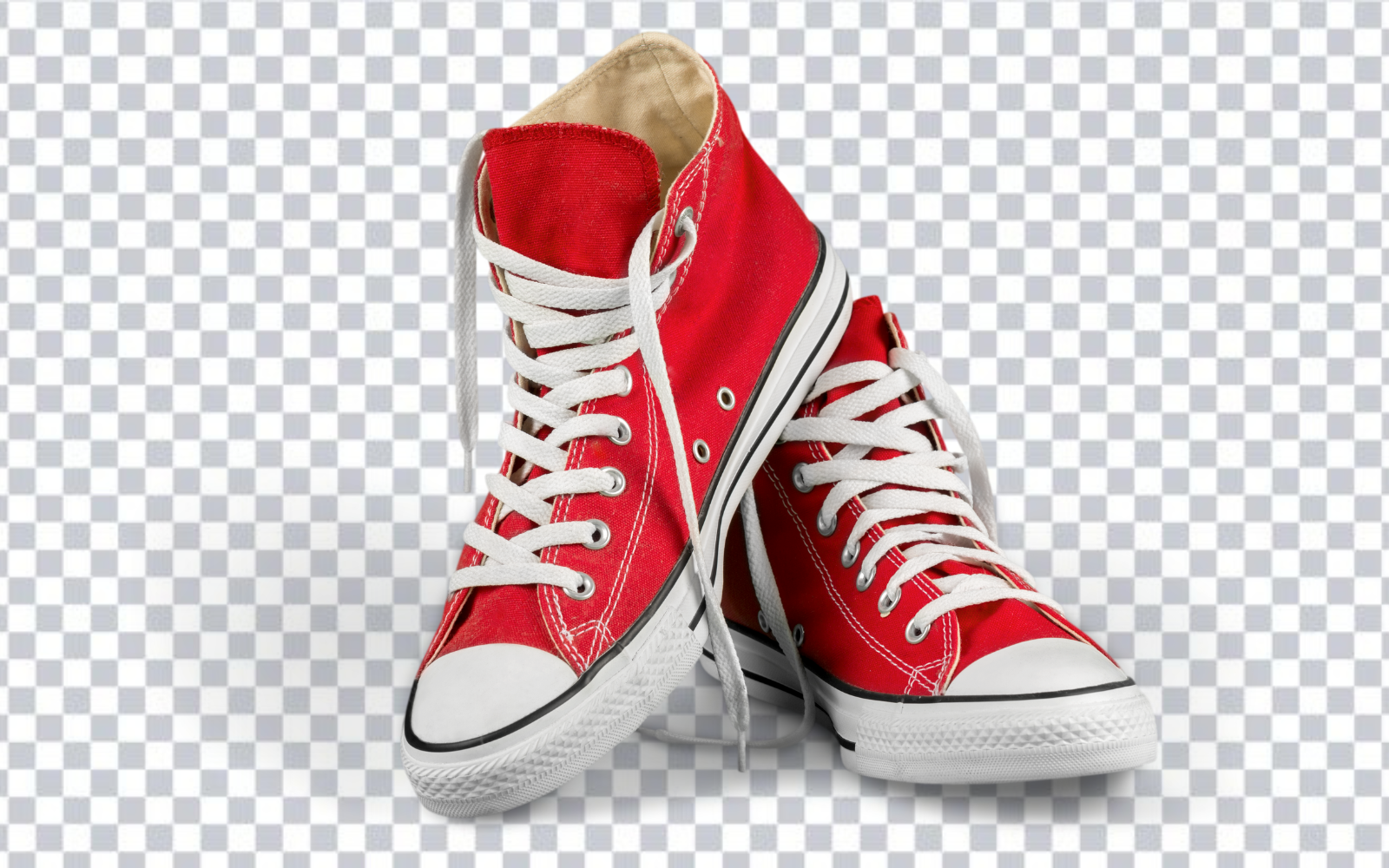
Try the editor
Remove backgrounds from your next image with RemoveBGAI
Remove BackgroundWhy clothing photos need careful background removal
Unlike solid products, garments have soft, irregular edges. Knitwear, lace, denim fray, and sheer fabric all create semi-transparent boundaries where the background shows through or around the material. Buttons, zippers, and loose threads add small detail that is easy to lose. An over-aggressive removal clips fabric texture; an under-aggressive one leaves a halo of the original background color.
The difference between a clean cutout and a halo-fringed one is visible in search results. Marketplaces like Amazon Fashion, Shopify storefronts, and Etsy grids show thumbnails at 200–300 px — large enough to notice pale fringing but small enough that minor imperfections are invisible. Targeting that display size when reviewing gives a realistic quality check.
How to photograph clothing for better removal results
Use a plain background with strong contrast to the garment. For dark clothing, use a white or light gray backdrop. For pale or white clothing, use a mid-gray or pale blue surface. Shoot flat-lay or on a mannequin on a consistent surface with even light — shadows falling across the garment edge are harder for models to separate from background.
Steam or iron the garment before shooting. Creases and folds create depth that can confuse edge detection in the problem zones. Keep the sharpest source file — do not rely on a resized thumbnail or a compressed version shared from the supplier.
Reviewing a clothing cutout — what to check
- Switch to a dark preview background immediately — fringing from light backgrounds is invisible on white.
- Inspect sleeve edges, collar, hem, and any trim or embellishment separately.
- Check for missing lace or mesh sections where the background is partially visible through the fabric.
- Look for pattern or print areas near the edge where subject and background colors are similar.
- Zoom to 150–200% on fine details before accepting the result.
- Preview at thumbnail size (roughly 300 px wide) to validate the image as a product listing would show it.
Marketplace requirements for fashion product images
- Amazon Fashion main image: pure white background (RGB 255,255,255), product fills 85%+ of frame, JPG.
- Shopify: supports transparent PNG for product images; use white for main listing image.
- Etsy: recommends clean backgrounds; the main listing image should show the product clearly.
- Instagram Shopping: square or portrait, clean background preferred for product tags to work correctly.
- ASOS/supplier portals: typically specify white background, minimum pixel dimensions, and file size limits — check the current brand guide.
Try the editor
Remove backgrounds from your next image with RemoveBGAI
Remove BackgroundReader questions
How do I remove background from a clothing product photo?
Upload the garment photo to RemoveBGAI. The browser removes the background automatically. Check the edge quality — especially at sleeve ends, collar, and any sheer fabric — then download a transparent PNG for design use or apply a white background for marketplace listings.
Can I remove background from dark clothing?
Yes. Dark garments against a light background are actually well-suited for AI removal because the contrast is high. The key is to check the result on a dark preview background too, so edge fringing from the original light background is visible.
How do I create white background product photos for Shopify or Amazon?
Upload your product photo to RemoveBGAI, remove the background, then select White from the background options in the editor. Download the result as PNG or JPG. The white background meets the requirements for most marketplace main images.