
Tutorials
How to add a clean white background to any photo in a few steps.
3 min read · RemoveBGAI Team
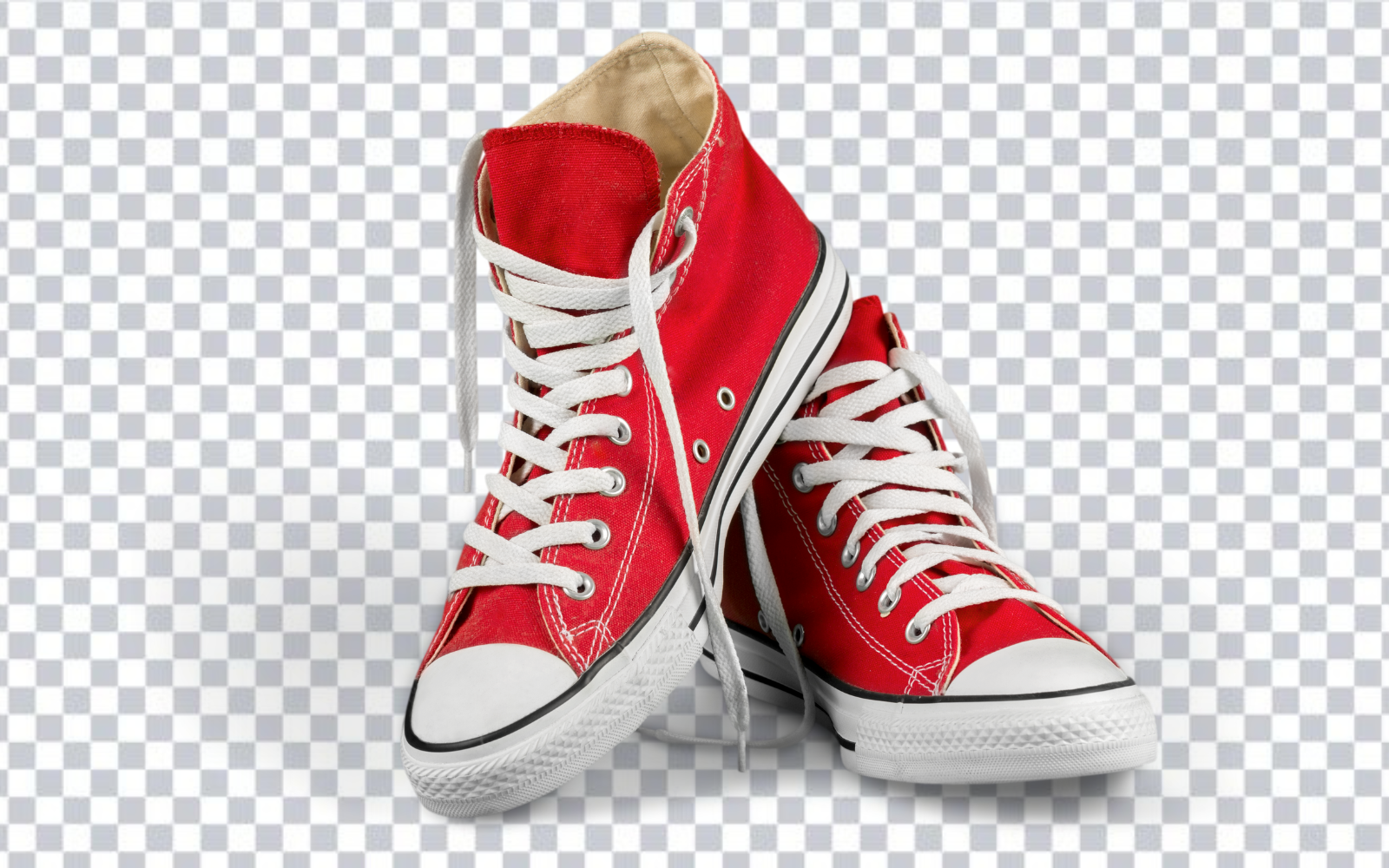
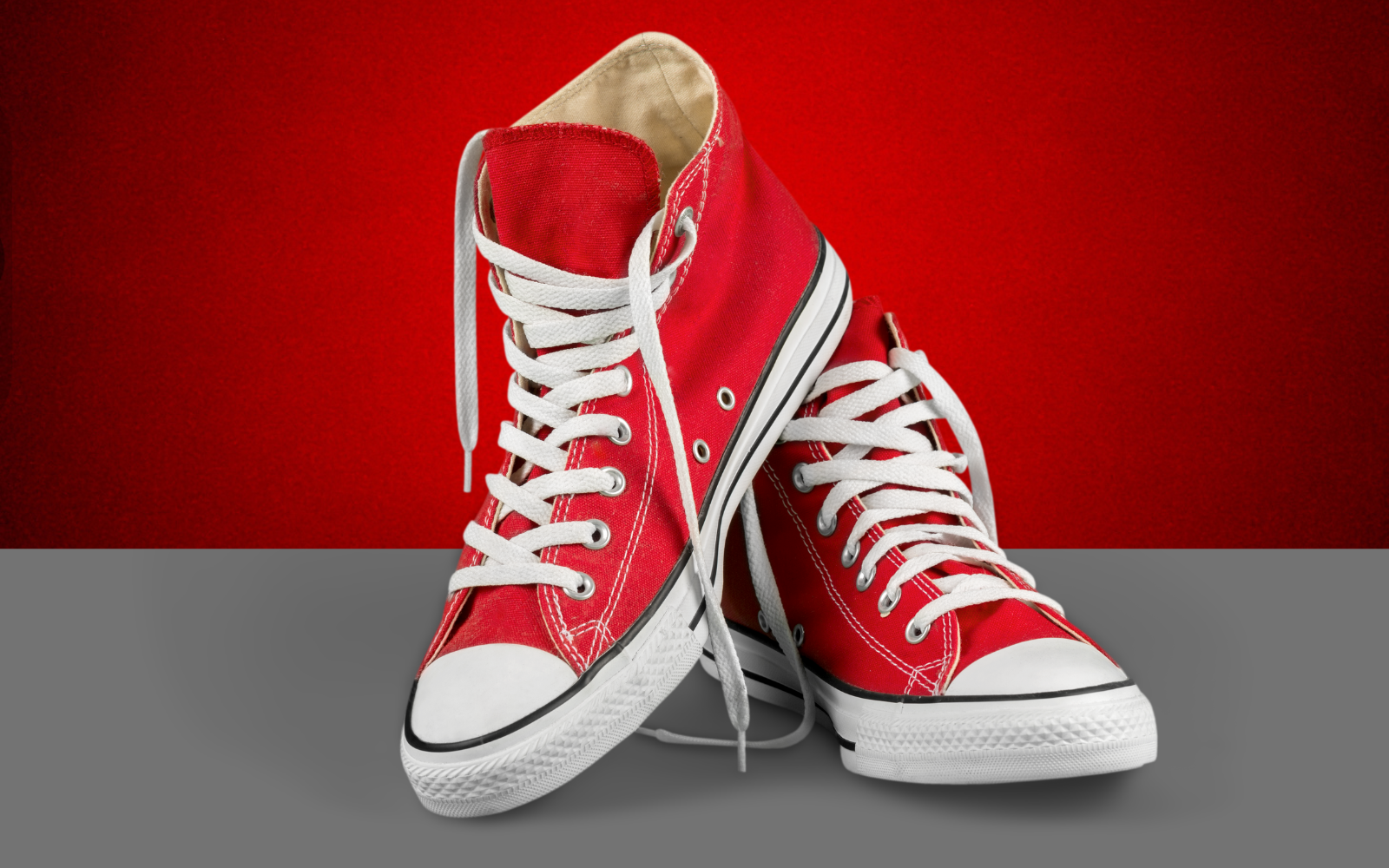
White backgrounds are the most requested output for product listings, ID photos, professional headshots, and marketplace uploads. The process is straightforward: remove the existing background, replace it with white, and export in the format the destination requires. Getting the edge quality right is what separates a passable result from a clean one.
Try the editor
Remove backgrounds from your next image with RemoveBGAI
Remove BackgroundRemove the original background first
The first step is isolating the subject. Upload your photo to RemoveBGAI and let the browser-based model separate the foreground from the background. Review the cutout before moving on. A white background placed over an imprecise cutout will make the edge problems more visible, not less, because the sharp white rectangle next to a ragged subject edge is easy to spot.
Pay attention to hair, fur, loose fabric, and any element that extends close to the frame edge. These areas tend to need the most attention before the background swap.
Add the white background and check the result
In the RemoveBGAI editor, switch the background to white. Inspect the edge of the subject against the white surface at normal viewing size, then zoom in on the most detailed areas. A common problem is a slight gray or colored fringe where the subject meets white. This is usually residual color from the original background bleeding into semi-transparent edge pixels.
If the fringe is visible, try reprocessing the original photo. A clean, high-contrast source image often produces a better edge than running the same compressed file multiple times.
Export requirements by destination
- Amazon main image: pure white background (RGB 255,255,255), JPG, product fills at least 85% of the frame.
- Etsy: white or light gray background, JPG or PNG, square crop is common.
- LinkedIn profile photo: any clean solid background is acceptable, square crop recommended.
- Passport and ID photos: requirements vary by country; check the issuing authority for exact dimensions, background shade, and expression rules before using a self-processed photo.
- General ecommerce: export JPG at high quality for compressed delivery, PNG if the platform accepts it and transparency may be needed later.
Using RemoveBGAI to produce a white background image
Upload your photo and let the model remove the existing background. Once the cutout is ready, set the editor background to white. Inspect the edge of the subject at this point: a white background makes pale fringes invisible while making colored fringe artifacts more obvious. Toggle between white and black to catch both problems.
Download as PNG if the destination accepts it or if you want to reprocess later. Download as JPG when the platform requires it. For JPG, use high quality (90 or above) to avoid compression artifacts around sharp edges. Keep the original cutout as a transparent PNG master so you can produce other background colors later without repeating the removal.
Common marketplace requirements recap
- Amazon main image: pure white (RGB 255,255,255), no watermarks, product at 85%+ of frame, JPG.
- eBay: white or light gray background strongly recommended for main image.
- Etsy: clean background preferred; check current shop image guidelines.
- Google Shopping: white or light background, no borders, watermarks, or promotional text.
- Personal use (résumé, badge, headshot): match the platform's stated preference or use plain white.
Try the editor
Remove backgrounds from your next image with RemoveBGAI
Remove BackgroundReader questions
Is a white background the same as a transparent background?
No. A transparent background has no color; the surface behind the image shows through. A white background fills the transparent area with solid white. Transparent PNG is the reusable format; the white background version is a flattened export for destinations that require it.
Can I use this for passport photos?
RemoveBGAI can produce a white background cutout that looks like a passport photo, but official passport and visa photos have strict requirements around lighting, shadow, expression, dimensions, and print quality. Verify your result against the issuing authority guidelines and do not submit self-processed photos where the authority requires studio-certified prints.
What format should I download for a white background photo?
Download JPG if the destination requires it and transparency is no longer needed. If you want to keep flexibility, download PNG with a white background, which is slightly larger but avoids JPG compression artifacts around fine edges.