
Tutorials
How to get a clean profile picture by removing or replacing the background.
3 min read · RemoveBGAI Team
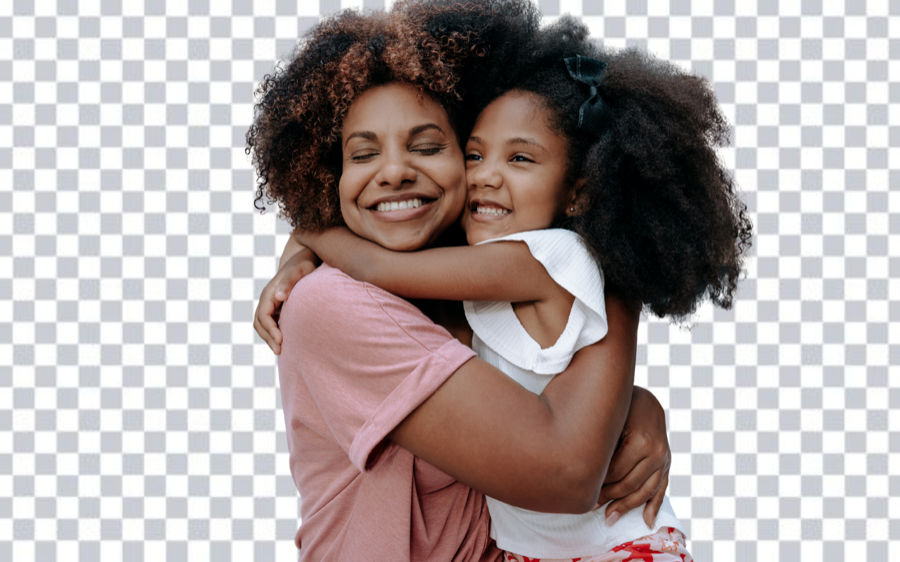
A distracting background is the most common thing that makes an otherwise good headshot look unprofessional. Whether you need a clean white background for a corporate directory, a blurred look for video calls, or a transparent cut for creative use, the process starts the same way: isolate the subject cleanly. This guide explains how to do that and what to check before uploading the result.

Try the editor
Remove backgrounds from your next image with RemoveBGAI
Remove BackgroundWhat makes a profile photo background hard to remove
Profile photos taken indoors with mixed lighting, near walls with similar tones to the subject, or with hair close to the wall present the most difficulty. The model needs contrast between the subject and the background to segment them accurately. A blue wall behind a blue shirt, or a cream wall behind pale skin, reduces the available signal.
The second common problem is image quality. Profile photos are often cropped from group shots or taken on phones in poor light. Running a low-resolution or heavily compressed image through background removal produces soft, unresolved edges. If you have access to the original full-resolution photo, use that.
Review hair and shoulder edges before uploading anywhere
After processing, toggle between transparent, white, and black. Hair is almost always the test case. Dark hair on a light wall often comes out cleanly; light hair on a light background, or natural hair with complex texture, needs a closer look. Inspect where the shoulder edge meets the background. Soft fabric and out-of-focus clothing edges can get over-trimmed.
For LinkedIn and corporate directories, small irregularities in the edge are usually acceptable at profile photo sizes. For a larger printed use, spending time on the edge matters more.
Background replacement options
- White or light gray: standard for corporate directories, LinkedIn, Microsoft 365 tools.
- Blurred original background: often achievable in your phone camera or editing app, not via background removal.
- Brand color: place the transparent PNG on a solid brand color in a design tool.
- Transparent PNG: keep this as the master so you can apply any background later without repeating the cut.
- Custom photo background: upload a replacement in the editor, but check that the lighting direction and color temperature look plausible beside the subject.
Step-by-step in RemoveBGAI
Open RemoveBGAI and upload your portrait. The model processes the image in the browser. When it finishes, toggle the background between transparent, white, and black. Hair and shoulder edges are the two areas to check most carefully. If the result looks rough on any of those backgrounds, try the original full-resolution photo rather than a screenshot or messaging-app copy.
Once you are satisfied with the cutout, apply the background you need — white for most corporate contexts, a custom color to match your company brand, or transparent if you will place the photo inside a design tool later. Download PNG. Crop to the required dimensions for the platform before uploading.
Platform-specific tips
- LinkedIn: square crop, minimum 400 x 400 pixels, JPG or PNG under 8 MB.
- Microsoft Teams and Google Meet: square PNG or JPG, typically 648 x 648 pixels.
- Slack: minimum 512 x 512 pixels, square crop.
- Instagram: square or portrait, minimum 320 x 320 pixels.
- Corporate directories: follow the HR template or ask for the required dimensions before processing.
Try the editor
Remove backgrounds from your next image with RemoveBGAI
Remove BackgroundReader questions
Will this work on a selfie?
Yes, but selfies taken in cluttered rooms, with backlit windows, or against backgrounds similar in color to your clothing tend to give rougher results. A plain wall with even light gives the best outcome.
Can I use this to create a virtual background for video calls?
RemoveBGAI processes still images, not live video. For virtual backgrounds in Zoom, Teams, or Meet, use the platform's built-in background feature instead. RemoveBGAI is useful for creating a clean profile picture to upload to those platforms.
What size should a LinkedIn profile photo be?
LinkedIn recommends a square image between 400 x 400 and 7680 x 4320 pixels. The file must be JPG or PNG and under 8MB. Export your result at a reasonable resolution, at least 800 x 800 pixels, to ensure it looks sharp at all display sizes.