
Tips & Ideas
How to get cleaner image cutouts for Canva without relying on the built-in tool.
3 min read · RemoveBGAI Team
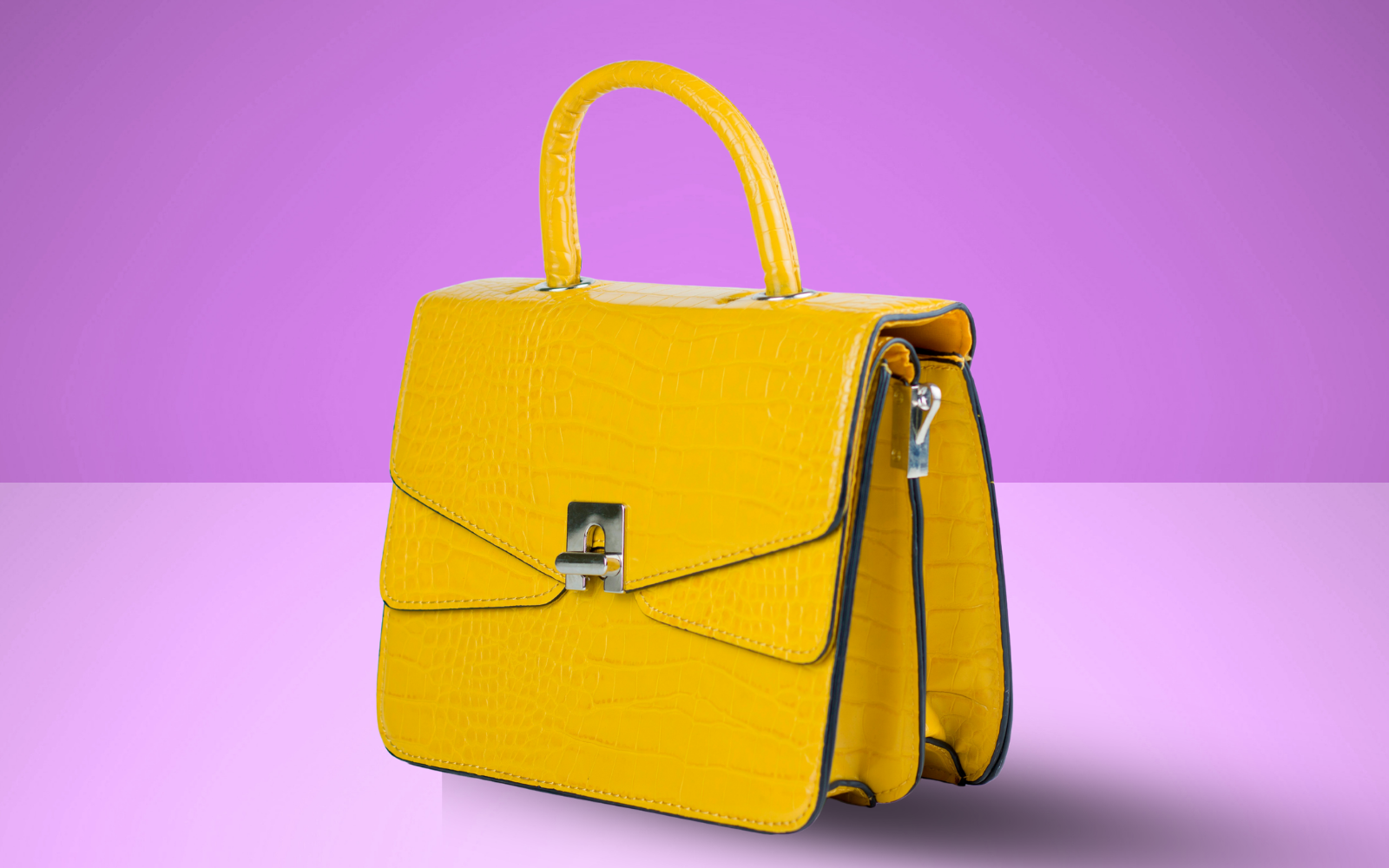
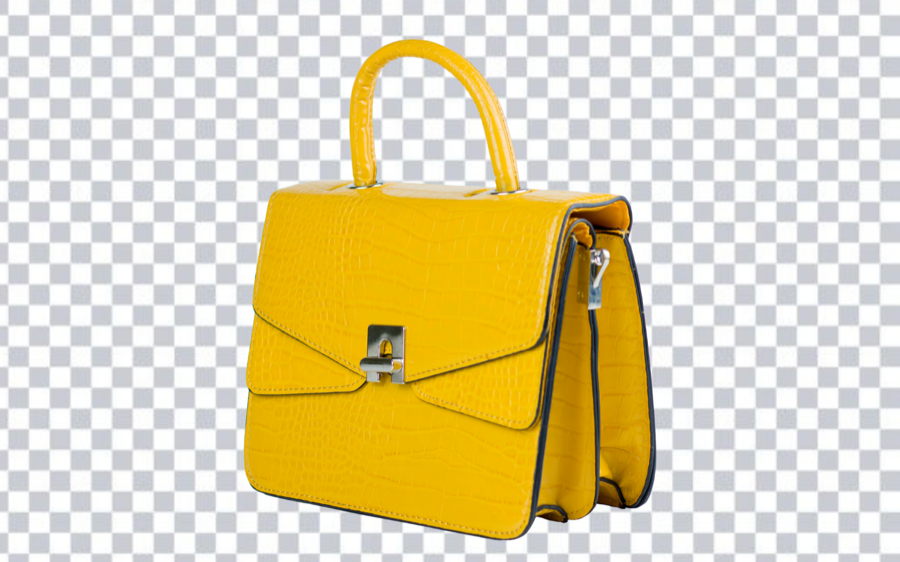
Canva has a built-in background removal tool, but it requires a Canva Pro subscription and produces variable quality on complex subjects. Processing your images in RemoveBGAI first — before importing into Canva — gives you more control over the edge, works for free, and produces a transparent PNG that Canva handles perfectly.
Try the editor
Remove backgrounds from your next image with RemoveBGAI
Remove BackgroundWhy pre-processing works better for Canva
Canva's built-in background removal is convenient but limited. It is designed as a one-click shortcut, not a detailed editing tool. For simple product shots on plain backgrounds it is often fine. For hair, fur, complex product edges, logos with thin strokes, or anything with soft subject transitions, the result can leave halos or choppy edges that are immediately visible in a Canva design.
RemoveBGAI processes the image in your browser and gives you a preview before you commit to the result. You can check the edge on a dark background, catch problems before exporting, and download a clean PNG that arrives in Canva ready to use without further cleanup.
The workflow: process first, then import
- Upload your image to RemoveBGAI and review the cutout edge.
- Preview on white, then on dark, to catch any residual background color.
- Download as PNG to preserve the transparent background.
- Open Canva and upload the PNG through the Uploads panel.
- Place the PNG on any slide, post, or graphic without needing Canva Pro removal.
What types of images benefit most
Portrait photos used in social media posts, event graphics, team slides, and speaker cards benefit the most because hair edges are where Canva's built-in tool tends to struggle. Product photos, logos, and icons with fine detail are the next biggest improvement over the Canva alternative.
For simple subjects on plain single-color backgrounds, the quality difference between the two approaches is smaller. Use RemoveBGAI when you need better control, when the result will be used at a large size, or when you want to reuse the same cutout in multiple designs.
Using the transparent PNG across multiple Canva designs
Once a transparent PNG is in your Canva uploads folder, you can reuse it across any design without repeating the removal step. A speaker portrait, a product image, or a logo processed once becomes a reusable asset that can sit on any brand color, background image, or gradient Canva offers.
This is especially useful if you are building a consistent social media visual identity where the same headshot, product, or icon needs to appear in posts, stories, banner ads, and slide decks.
Step-by-step: from RemoveBGAI to Canva
Upload your photo or graphic to RemoveBGAI. Let the browser process the background and review the result. Toggle the dark background preview to check for any pale edge fringe. Download the file as a PNG — not JPG — to preserve the transparent layer.
Open Canva and go to Uploads on the left panel. Upload the PNG file. It appears in your uploads gallery and can be dragged into any design. Because the background is already removed, the image immediately sits cleanly on the Canva canvas color, pattern, or photo background without any further steps.
Reuse the same PNG across multiple Canva projects
- Once uploaded, the PNG stays in your Canva uploads and can be reused in any future design.
- The same headshot PNG can be used in a LinkedIn banner, an Instagram story template, and a slide deck without repeating the removal step.
- For brand consistency, process all team photos in RemoveBGAI with the same export settings before uploading to Canva.
- A transparent PNG master also works in Canva's free tier without requiring Canva Pro.
Try the editor
Remove backgrounds from your next image with RemoveBGAI
Remove BackgroundReader questions
Do I need Canva Pro to use transparent PNG files from RemoveBGAI?
No. Canva Pro is only required to use Canva's own background removal tool. Transparent PNG files can be uploaded and used on free Canva accounts without any subscription.
What size should my PNG be for Canva?
Export at the largest clean resolution available from the source image. For standard Canva social graphics at 1080 x 1080 pixels, an image at least that size works well. For presentations and banners, larger is safer because Canva may stretch the image to fit the frame.
Will the transparent background stay transparent after I upload to Canva?
Yes. Canva correctly preserves PNG transparency. The transparent area will show through to the Canva background, so the subject floats naturally on whatever color or image you use.