
Tips & Ideas
How to prepare cutout images for cleaner PowerPoint and Google Slides decks.
3 min read · RemoveBGAI Team
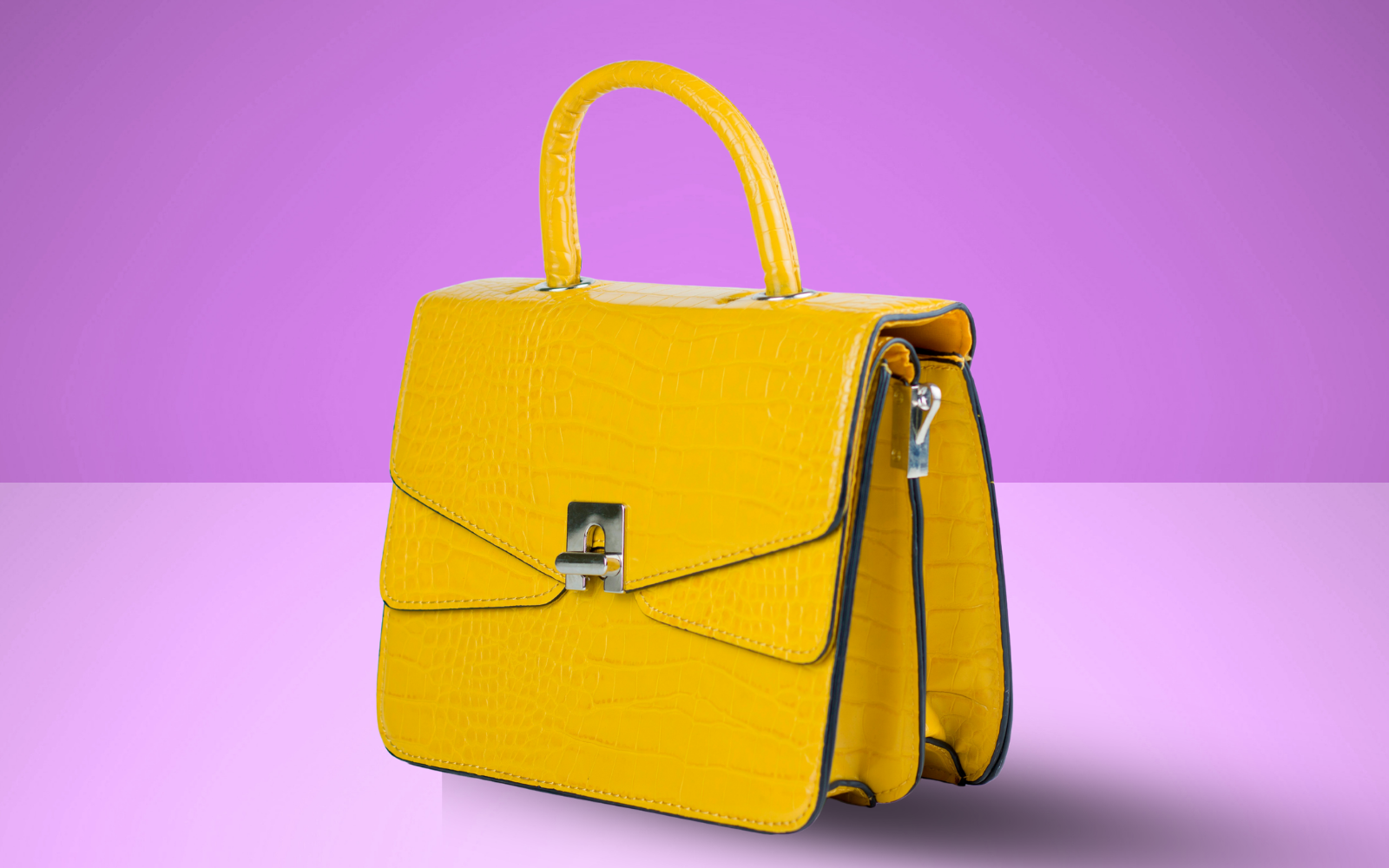
Slides with cutout images — people, products, icons, or graphics floating on the slide background instead of sitting inside a white rectangle — look more polished and communicate hierarchy better. The built-in background removal tools in PowerPoint and Google Slides work acceptably for simple subjects but struggle with hair, fine edges, and complex shapes. Pre-processing your images before importing them gives you better results and more control.
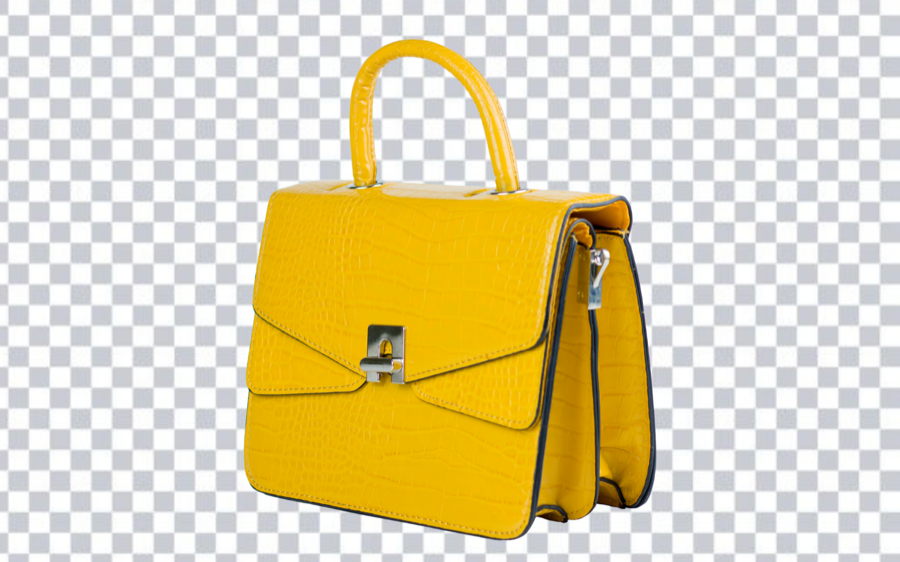
Try the editor
Remove backgrounds from your next image with RemoveBGAI
Remove BackgroundWhy slide decks need transparent images
When you insert a photo into a slide, the rectangular image frame competes visually with the slide layout. If the photo has a white background and the slide is also white, the join can look acceptable. If the slide has a dark background, a colored gradient, or a textured surface, the white rectangle becomes immediately obvious. Transparent PNG files placed on any slide background show only the subject.
Speaker portraits, product shots, icon illustrations, and logo assets all benefit from this approach. The same transparent file can be reused across different slide themes, printed handouts, and digital exports without re-editing.
Process your images before importing
Upload each image to RemoveBGAI and review the cutout edge before downloading. For portraits, check around the hair and shoulders. For products, check reflective surfaces, handles, gaps, and the base. For icons and graphics, confirm that thin strokes and small text elements were not clipped.
Download as PNG to preserve transparency. Then import the PNG directly into your slide. PowerPoint and Google Slides both support PNG with transparency, so the image will float cleanly on the slide background. If the edge looks rough at presentation size, go back to the source image and retry with the original high-resolution file.
Slide-ready image checklist
- Export from RemoveBGAI as PNG, not JPG, to keep transparency.
- Preview the cutout against your slide background color before importing.
- Use consistent subject scale across slides when the same type of image repeats.
- Keep a transparent PNG master so you can reuse the same cutout across different slide themes.
- For printed handouts, check that the subject looks correct on white paper as well as on the screen layout.
Practical workflow for slide assets
Collect the images you want to use as cutouts — portraits, products, icons, diagrams. Upload each to RemoveBGAI and process the background. Preview the result against a color similar to your slide background before downloading. If your slides use a dark theme, check the cutout on dark. If they use a brand color, check against that color.
Save all processed images as PNG in a dedicated folder for the presentation. Import them directly into PowerPoint or Google Slides. Resize as needed on the slide — the transparency will hold at any scale. If an image looks rough after scaling up on the slide, go back to the original and process a higher-resolution version.
Consistency rules for a professional-looking deck
- Use the same apparent scale for similar subjects (all people cutouts at similar head-to-shoulder size).
- Align cutouts consistently — left, right, or center — across slides that use the same layout.
- Keep shadow treatment consistent: either add a soft drop shadow to all cutouts or none.
- Use a transparent master so one cutout can be reused on light and dark slide themes.
- Check the final exported PDF or slide video to confirm transparency renders correctly in the output format.
Try the editor
Remove backgrounds from your next image with RemoveBGAI
Remove BackgroundReader questions
Does PowerPoint support transparent PNG files?
Yes. PowerPoint renders PNG transparency correctly. Insert the PNG through Insert → Pictures and it will appear with the transparent area showing the slide background. The same is true for Google Slides.
Should I remove the background in PowerPoint or before importing?
Pre-processing the image in RemoveBGAI before importing gives better edge quality for complex subjects, especially hair, fine graphics, and product edges. PowerPoint's built-in removal works well for simple shapes against plain backgrounds but requires manual correction for anything more detailed.
What resolution should my slide images be?
For standard 16:9 slides displayed on a projector or screen, 150 to 300 PPI at the displayed size is typically sufficient. For slides that will be printed or exported at high resolution, use the largest source image available before processing.