
Background Removal
How to prepare transparent PNG cutouts for Figma without a plugin or subscription.
3 min read · RemoveBGAI Team

Figma is the standard design environment for product teams, but it does not include a native background remover. The recommended workaround — Figma's Remove Background plugin — requires internet connectivity and sends images to an external API. RemoveBGAI offers a faster, privacy-first alternative: process the image locally in your browser, download a transparent PNG, and import it into Figma in under a minute.
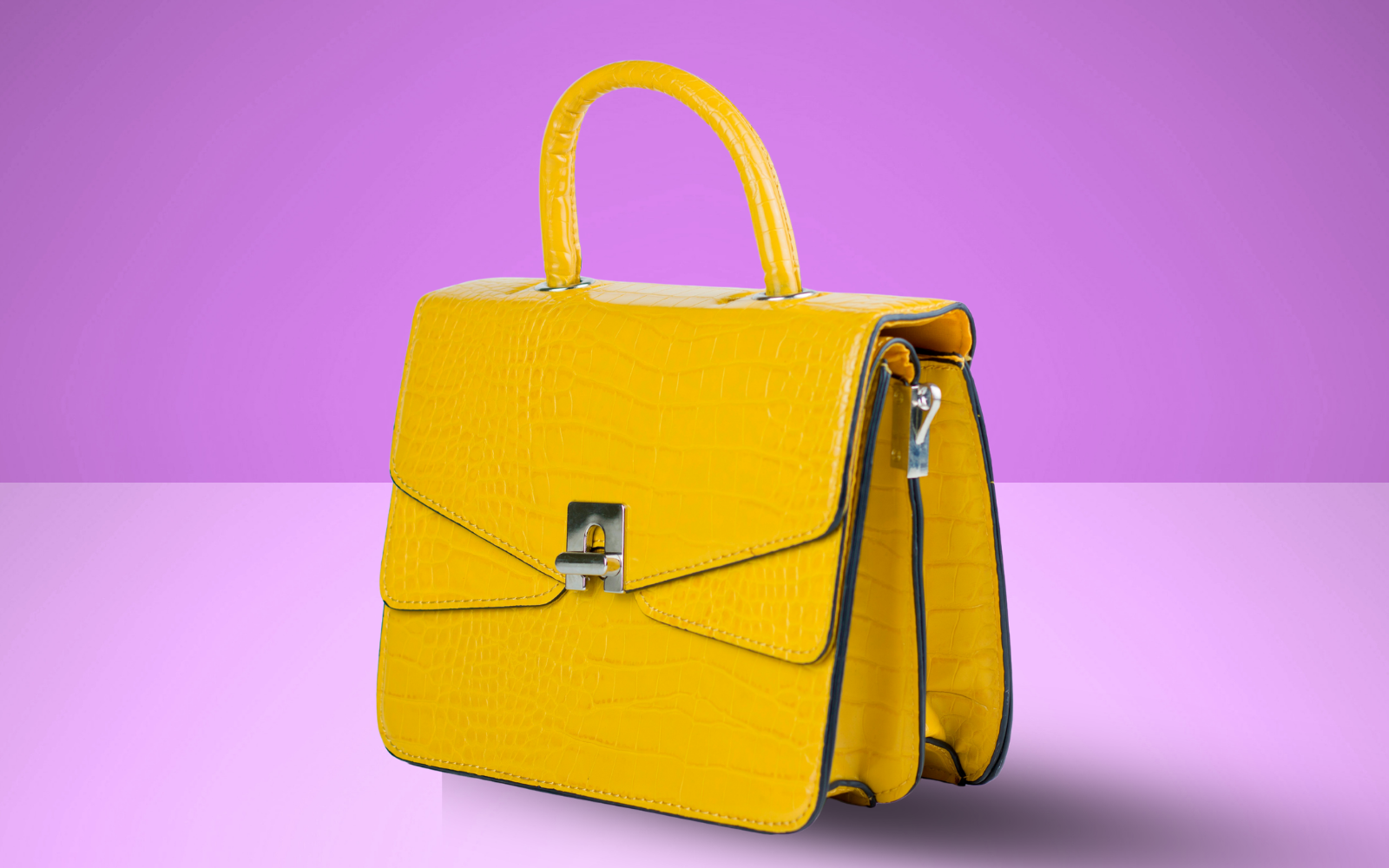
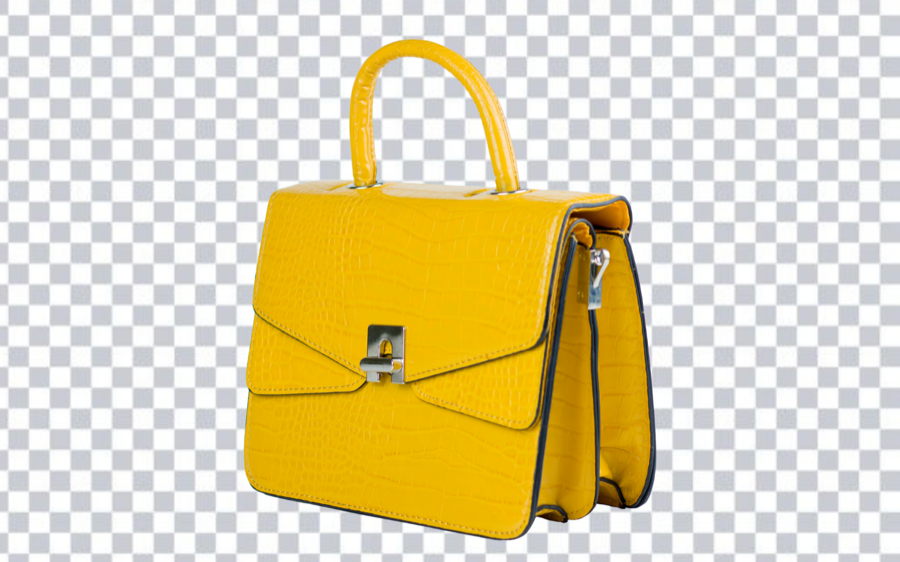
Try the editor
Remove backgrounds from your next image with RemoveBGAI
Remove BackgroundWhy designers use an external tool before importing to Figma
Figma plugins that remove backgrounds work by uploading the image to a third-party API, which introduces a privacy consideration for client work and introduces latency compared to local processing. Browser-based tools like RemoveBGAI process the entire file inside your browser tab — no API call, no data leaving the device — and produce a standard PNG that imports into any version of Figma, including the free tier.
This workflow is also more repeatable. The transparent PNG sits in your Figma project as a normal layer. You can resize, mask, frame, and re-export it without returning to a plugin. The source file stays available for other projects, variants, and future edits.
Step-by-step: from raw photo to Figma layer
Open RemoveBGAI in a browser tab. Click Upload image and choose the photo, product shot, logo, or illustration you want to cut out. The browser processes the image locally. When the result appears, switch the background preview to Transparent and inspect the edge — especially around hair, clothing edges, fine product parts, or logo details.
Click Download to save the transparent PNG. In Figma, drag the PNG file directly onto the canvas, or use File → Place image. The image lands as a raster layer with its alpha channel intact. You can place it inside a frame, mask it with a shape, adjust fill opacity, or use it as a Fill image in any container. No plugin step is needed.
Best practices for cutouts used in Figma
- Export at the original full resolution before placing in Figma — resizing up in Figma degrades quality.
- Use PNG, not JPG — JPG cannot store transparent pixels and will produce a white background.
- Check the edge on your design's actual background color before handing off the file.
- Name the layer descriptively so teammates know the source — e.g. "product-shot-transparent.png".
- Keep the original photo in the Figma file as a hidden layer for future re-export if cutout needs to be redone.
- For component libraries, store cutouts in a dedicated Assets page and use them via Instances.
Use cases where this workflow saves time
Product design: mock up a real product image on a UI background or in a device frame without manual masking. User research: build realistic prototype screens with actual product shots instead of placeholder rectangles. Marketing design: prepare hero images, social banners, and ad creatives using actual photos with clean transparent edges.
Logo and brand assets: convert a logo with a white background into a transparent version that works on any brand color. Presentation design: embed a cutout portrait or product shot that sits cleanly against the slide theme without a white box behind it.
Try the editor
Remove backgrounds from your next image with RemoveBGAI
Remove BackgroundReader questions
How do I remove a background for a Figma project?
Upload the image to RemoveBGAI, let the browser remove the background, and download the transparent PNG. Import the PNG into Figma by dragging it onto the canvas. The transparent area is preserved and the image works as a normal Figma layer with no plugin required.
Does RemoveBGAI work with Figma Community plugins?
It is not a Figma plugin — it is a standalone browser tool. That means it works regardless of your Figma plan, does not require plugin permissions, and processes images locally without sending data to an external API.
Can I use the transparent PNG in Figma components?
Yes. A transparent PNG imported into Figma behaves like any raster layer. You can add it to a component, use it as an image fill, or place it inside an auto-layout frame. The alpha channel is respected by Figma in all export formats that support transparency.