
Tips & Ideas
How to remove a background from a screenshot and keep the useful part.
3 min read · RemoveBGAI Team
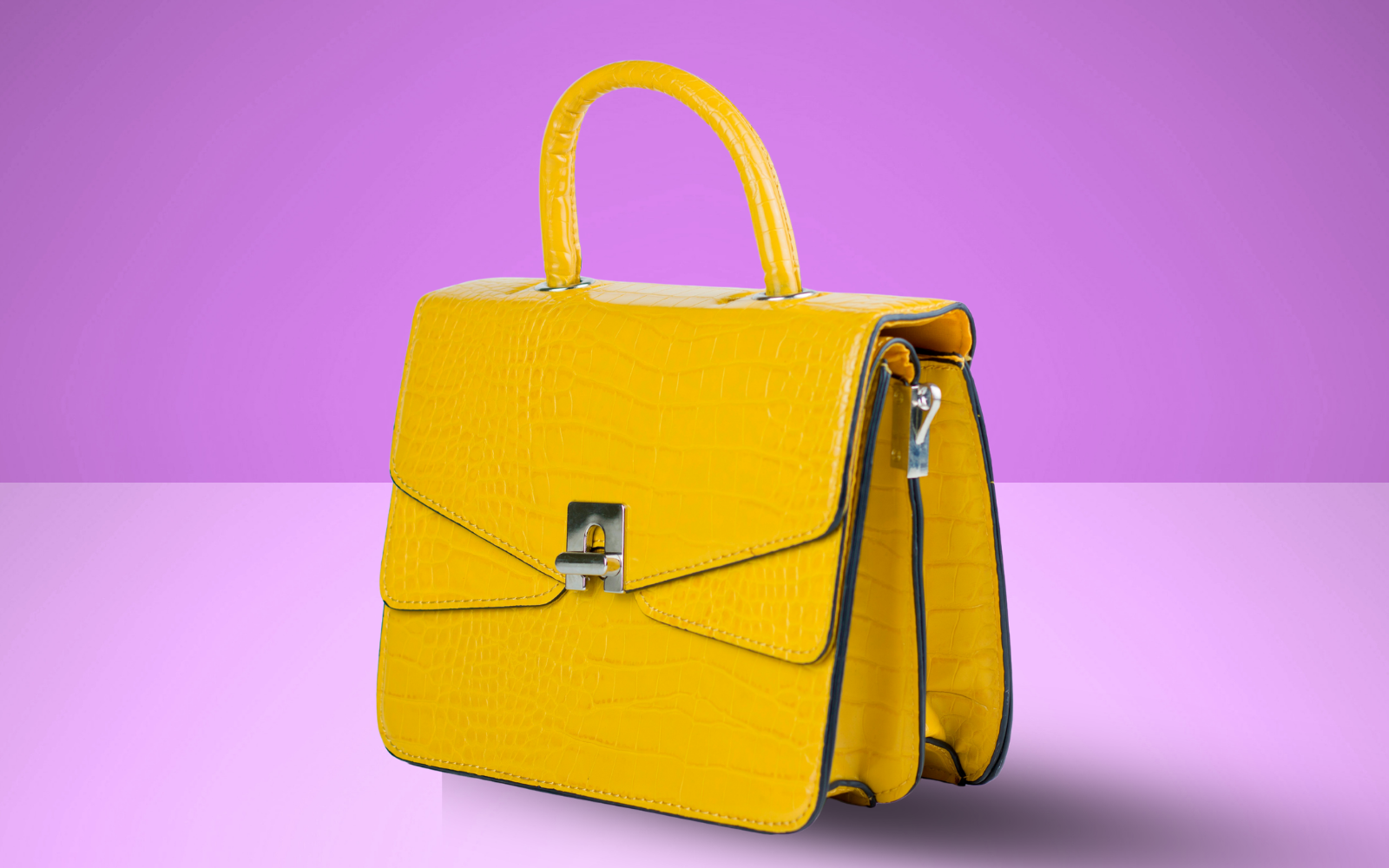
Screenshots are one of the most common everyday inputs for background removal. A UI element cropped from an app, a logo from a website, an icon from a system interface, or a product image from a web page — all of them may start as a flat screenshot before they need to become a clean transparent asset. This guide explains how to get the best result from screenshot inputs and what limits to expect.
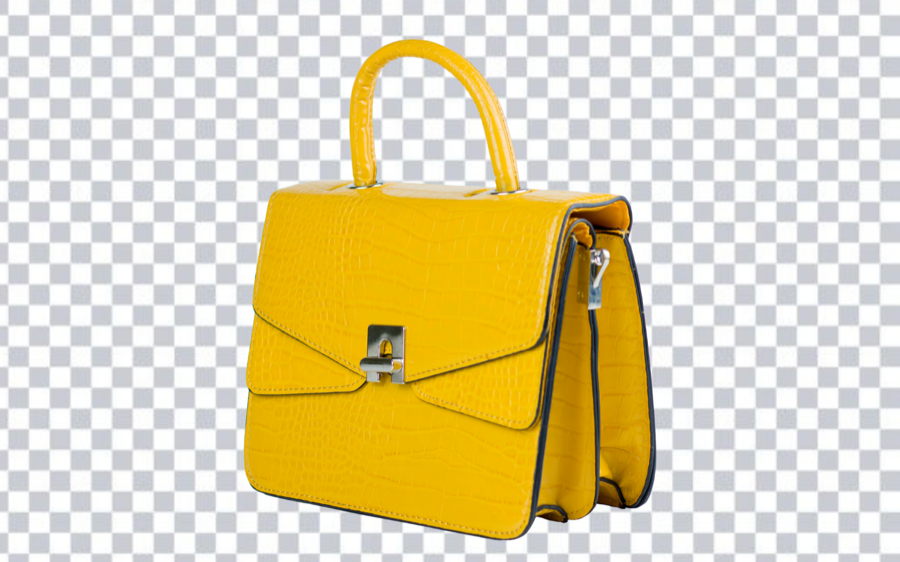
Try the editor
Remove backgrounds from your next image with RemoveBGAI
Remove BackgroundWhat screenshots make good inputs
Screenshots with a clear subject on a uniform background work best. A product on a white web page, an icon on a solid color, a logo on a brand-colored header, or a UI button on a simple app background are all good candidates. The simpler and more uniform the background, the cleaner the removal.
Screenshots from websites that use gradient backgrounds, busy textures, or photographic page backgrounds are harder because the model sees more variation behind the subject. In these cases, try to crop the screenshot tightly around the subject before uploading to reduce the background area.
Resolution and compression are the main limits
Screenshots are typically 72 to 96 PPI at screen resolution. That is fine for on-screen use but can look soft when the exported PNG is displayed at a larger size. If the screenshot was resized or saved as JPG before being uploaded, compression artifacts will have already damaged the edges.
Use lossless PNG screenshots wherever possible. On macOS, Command + Shift + 4 saves a PNG by default. On Windows, the Snipping Tool can save as PNG. Avoid screenshots that have already been run through chat apps or social uploads, which add additional JPG compression.
Common screenshot background removal use cases
- Extracting logos and brand marks from website screenshots.
- Isolating UI elements for documentation, tutorials, or product walkthroughs.
- Pulling product images from competitor or reference pages.
- Cleaning up icons for use in presentations and design mockups.
- Extracting graphs, charts, or data visuals for reports and slides.
After removing the background
Preview the result on your target background before using it. A logo extracted from a white page may have a subtle white fringe that is invisible on white but shows up clearly on a dark slide or colored banner. Check on both backgrounds before committing to the final asset.
Save as PNG to keep the transparent channel. If the extracted element will be placed on a known fixed background immediately, you can flatten and save as JPG, but PNG keeps the asset reusable.
How to take a better screenshot for background removal
On macOS, use Command + Shift + 4 to take a region screenshot saved as PNG. On Windows, use the Snipping Tool in PNG mode. Avoid using the Print Screen key and pasting into Paint, which often adds quality loss. The goal is a lossless PNG before the screenshot enters any further processing.
Crop as tightly around the subject as the screenshot allows. A smaller background area means fewer edge decisions for the removal model and a cleaner result. If the subject is a logo in the top-left corner of a full-browser screenshot, crop to just the logo area before uploading.
Where screenshot cutouts are most useful
- Documentation and help center articles where a UI element is shown in isolation.
- Blog posts and tutorials that reference specific interface components.
- Presentation slides that need a product UI shown without the surrounding browser chrome.
- Design mockups where a real product screenshot needs to float on a new background.
- Competitive analysis materials where logos or product screens are used for reference.
Try the editor
Remove backgrounds from your next image with RemoveBGAI
Remove BackgroundReader questions
Can I extract a logo from a website screenshot?
Yes. A logo on a plain web page header is one of the best inputs for screenshot background removal. Use the highest-resolution screenshot you can take, crop tightly around the logo, and export as PNG.
Will it work on a screenshot with multiple elements?
Background removal works best when there is one clear primary subject. A screenshot with multiple isolated icons or UI elements may not separate cleanly unless you crop to one subject at a time before processing.
Is a screenshot-quality image good enough for print?
Usually not. Screen resolution is typically 72 to 96 PPI, which is too low for most print standards of 150 to 300 PPI. For print use, find the original vector or high-resolution version of the asset rather than working from a screenshot.